Best Password Managers for Business in 2026
📅 Last Updated: April 2026 ⏱ 22 min read
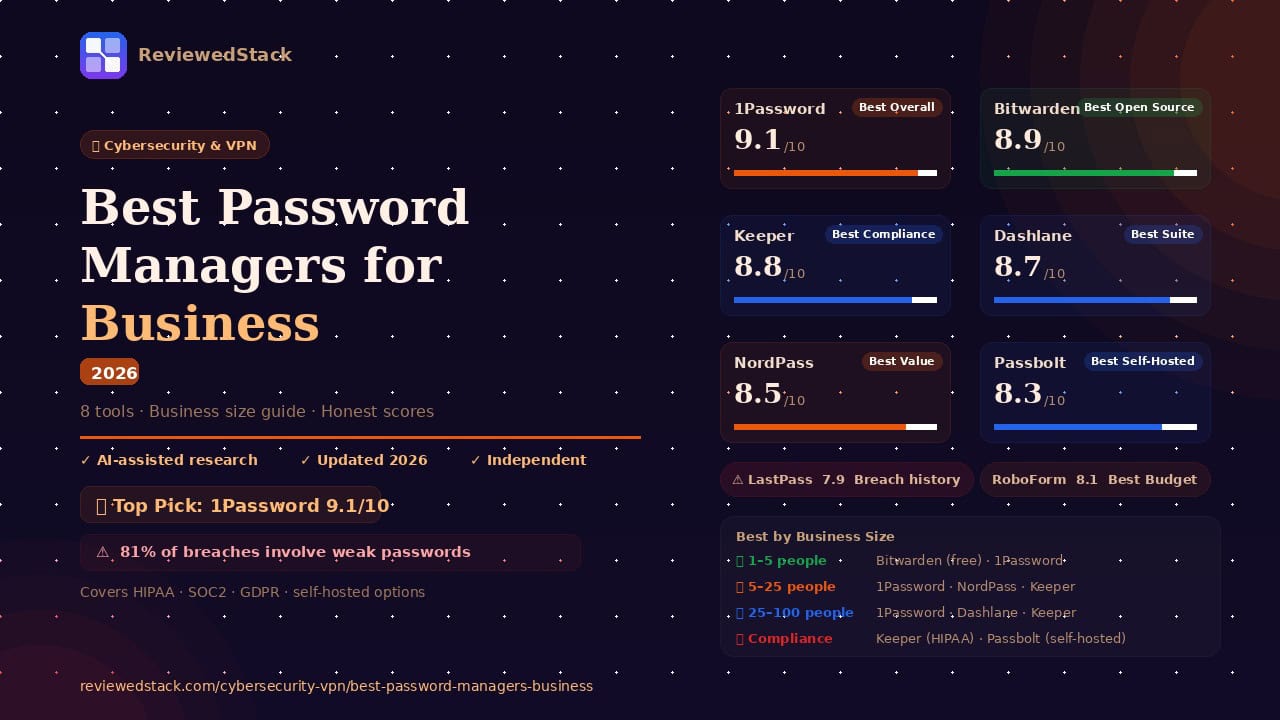
81% of data breaches involve weak or stolen passwords – yet most small businesses still rely on spreadsheets and shared inboxes to manage credentials. A business password manager fixes this in an afternoon. This article reviews the 8 best password managers for business to help you secure your company’s data. Our recommendations are based on our 5-point review methodology.
Table of Contents
Quick Comparison Table
| Tool | Best For | Free Plan | Starting Price | Score |
|---|---|---|---|---|
| 1Password | Best Overall | ❌ | $4.99/user/mo | 9.1/10 |
| Bitwarden | Best Open Source | ✅ | $4/user/mo | 8.9/10 |
| Dashlane | Best Security Suite | ❌ | $8/user/mo | 8.7/10 |
| Keeper | Best Compliance | ❌ | $2/user/mo | 8.8/10 |
| NordPass Biz | Best Value | ❌ | €2.49/user/mo | 8.5/10 |
| LastPass Biz | Best Legacy Teams | ❌ | $7/user/mo | 7.9/10 |
| Passbolt | Best Self-Hosted | ✅ | $4.42/user/month | 8.3/10 |
| RoboForm Biz | Best Budget | ❌ | $2.50/user/mo | 8.1/10 |
Note: Pricing verified April 2026. Always check vendor site for current rates.
The Best Password Managers for Business
1. 1Password Business – Best Overall
1Password Business is a highly polished, user-friendly credential manager designed to scale with growing teams.
Key features:
- Vaults for teams and departments to organize access
- Admin console with detailed activity logs and reporting
- Travel Mode – hide sensitive vaults from devices when crossing borders
- SSO integration (Okta, Azure AD, Google Workspace)
- Watchtower – monitors for breached passwords and weak credentials
Free plan: None – 14-day trial
Pricing: Starting from $4.99/user/month. Up to 60% discount when signing up for yearly payment.
Pros:
- Exceptional user interface that employees actually use
- Industry-leading “Watchtower” security dashboard
- Unique Travel Mode for physical device security
Cons:
- No permanent free tier for small teams
- Pricing is at the higher end of the market
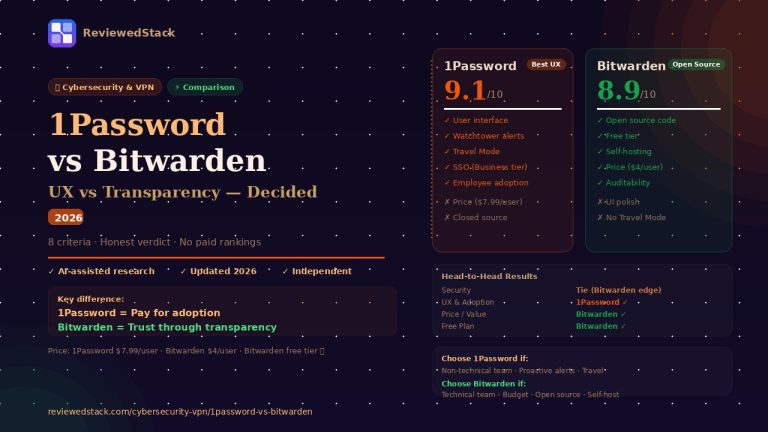
Evaluation: 1Password is the best overall choice for teams because it balances advanced security with a frictionless user experience. Features like Watchtower and Travel Mode provide protections that most competitors lack, specifically addressing the human element of security. Its robust SSO integrations and granular vault permissions make it the gold standard for modern small-to-medium businesses. The administrative interface is intuitive, allowing managers to delegate vault ownership without needing a deep technical background. Because the mobile and desktop apps are so polished, employee adoption rates tend to be significantly higher than with more clinical tools. Ultimately, 1Password reduces the “security tax” on productivity by making safe habits feel like the path of least resistance.
- Real-World Use Case: A marketing agency uses 1Password to manage client social media credentials. When a new freelancer joins a project, the admin grants them access to a specific “Client X” vault; when the project ends, the admin revokes access in one click, ensuring the freelancer no longer has the passwords on their personal devices.
- Standout Feature in Action: Using Watchtower, an IT manager receives a real-time alert that three employees are using the same password for both their work email and a compromised third-party research tool, allowing the manager to force a password reset before a credential-stuffing attack occurs.
- The Limitation: For very small teams of 2 or 3 people, the Business pricing tier can feel expensive, and the lack of a “lite” business version makes it a significant investment compared to budget competitors.
📖 1Password vs Bitwarden comparison →
2. Bitwarden – Best Open Source Password Manager
Bitwarden is a transparent, open-source password manager that offers high-end security features at a lower price point.
Key features:
- Fully open-source codebase available for public audit
- Unlimited password storage and device syncing
- Bitwarden Send for secure text and file sharing
- Directory connector for syncing with AD/LDAP
- Self-hosting options for enterprise users
Free plan: Yes – unlimited passwords, basic sharing
Pricing: Starting from $4/user/month on one year plan.
Pros:
- Most affordable professional-grade option
- Open-source transparency builds high trust
- Excellent free tier for very small teams
Cons:
- The user interface is more functional than beautiful
- Customer support can be slower than 1Password
Evaluation: Bitwarden is the top choice for security-conscious IT professionals who prioritize transparency and auditable code. Being the only fully open-source option on this list, its security can be independently verified by anyone, which builds a level of trust that proprietary software cannot match. It offers the best value for money while maintaining enterprise-grade encryption standards across all platforms. The tool is highly flexible, allowing teams to choose between Bitwarden’s cloud or their own private servers. While the interface is more utilitarian than its competitors, the feature set is comprehensive and reliable. For businesses that want high-end security without the high-end price tag, Bitwarden is the most logical transition from manual password management.
- Real-World Use Case: A small software development startup uses Bitwarden to store API keys and server root passwords. Because the team is technical, they appreciate the ability to audit the source code and use the Command Line Interface (CLI) to integrate password retrieval into their automated deployment scripts.
- Standout Feature in Action: Using Bitwarden Send, a HR manager securely transmits a temporary PDF containing a new hire’s tax documents via a password-protected, end-to-end encrypted link that automatically expires after one hour.
- The Limitation: The user interface is functional but lacks the “consumer-grade” polish of 1Password, which can lead to a steeper learning curve for non-technical staff members who aren’t used to managing encryption keys.
📖 1Password vs Bitwarden comparison →
3. Keeper Business – Best for Compliance
Keeper is an enterprise-hardened platform known for its granular permissions and deep compliance reporting.
Key features:
- Advanced reporting and audit module for compliance
- Role-based access controls (RBAC) with granular permissions
- HIPAA, SOC2, GDPR, and FedRAMP compliant
- Encrypted file storage (add-on)
- Automated team management via Active Directory
Free plan: None
Pricing: Starting from $2/user/month, billed annualy.
Pros:
- Superior audit trails for regulatory requirements
- Extremely granular control over user permissions
- Strongest compliance certification set on this list
Cons:
- Many useful features are locked behind expensive add-ons
- Interface can feel overly complex for non-technical users
Evaluation: Keeper is designed for businesses that must answer to auditors and regulatory bodies. Its reporting capabilities are the most detailed in the industry, making it easy to track exactly who accessed what and when. For healthcare or finance firms, Keeper’s compliance-first approach is worth the added complexity of its interface. The platform uses a proprietary “zero-knowledge” architecture that ensures even Keeper employees cannot see your data. Admins can enforce over 100 different security policies, from mandatory 2FA methods to IP address whitelisting. This level of control is essential for organizations that handle sensitive PII (Personally Identifiable Information) or intellectual property.
- Real-World Use Case: A dental clinic uses Keeper to stay HIPAA compliant. They set up role-based permissions so that dental assistants can access patient portal logins, but only the office manager can access the billing and insurance reimbursement systems.
- Standout Feature in Action: During a Compliance Audit, the IT head generates a “User Audit Report” that shows exactly which employees have changed their passwords in the last 90 days and provides a timestamped log of every time a sensitive vault was opened.
- The Limitation: Many of the most powerful features, such as the BreachWatch monitoring and secure file storage, are sold as expensive add-ons, which can quickly double the base per-user cost.
4. Dashlane Business – Best Security Suite
Dashlane is more than a password manager; it is an all-in-one security toolkit for small business employees.
Key features:
- Integrated VPN for secure public Wi-Fi use
- Real-time dark web monitoring and alerts
- Phishing protection and credential risk scores
- Interactive admin dashboard for team security health
- On-demand security training materials
Free plan: None
Pricing: Starting from $8/user/month, billed annualy.
Pros:
- Includes a VPN, saving on separate subscription costs
- Excellent “Password Health” score for the whole team
- Modern, streamlined web-first interface
Cons:
- Web-only focus may not suit all workflows
- Among the most expensive options per user
Evaluation: Dashlane is ideal for businesses that want to improve their overall security posture in one go. By bundling dark web monitoring and a VPN, it protects employees beyond just their login screens, securing their connection on public Wi-Fi and alerting them to external threats. It’s a “set-it-and-forget-it” tool that provides high visibility into team security risks through a centralized health score. The interface is modern and web-first, which simplifies deployment since there is no heavy software to install on every machine. Dashlane also excels at “Smart Spaces,” which keeps personal and work passwords completely separate for the employee. This privacy-focused approach helps gain employee buy-in for a company-mandated tool.
- Real-World Use Case: A remote-first consulting firm provides Dashlane to its traveling consultants. While working from airport lounges or coffee shops, the consultants use the integrated VPN to encrypt their traffic, while Dashlane simultaneously manages their client portal credentials.
- Standout Feature in Action: An employee receives a Dark Web Alert notification on their phone because their personal email was leaked in a retail site breach; Dashlane identifies that they use a similar password for their work Slack and prompts an immediate change.
- The Limitation: Dashlane has moved toward a web-only experience, which can be frustrating for users who prefer a dedicated desktop application that stays open independently of their browser tabs.
5. NordPass Business – Best Value
From the creators of NordVPN, NordPass offers a modern, high-performance manager at a competitive price.
Key features:
- XChaCha20 encryption (more modern than standard AES-256)
- Security dashboard to identify leaked credentials
- Google Workspace and Microsoft 365 SSO
- Shared folders for easy department access
- 24/7 priority support for business users
Free plan: None
Pricing: Starting from €2.49/user/month. Up to 40% discount when signing up for 2-yearly payment.
Pros:
- Very clean, modern user experience
- Affordable for teams moving off free tools
- Fast performance with modern encryption standards
Cons:
- Fewer advanced enterprise features than Keeper
- Relatively new compared to industry veterans
Evaluation: NordPass is a great entry point for small businesses that find 1Password too expensive and Bitwarden too technical. It offers a “sweet spot” of features, ease of use, and price, utilizing the modern XChaCha20 encryption algorithm. It’s particularly effective for teams already using the NordLayer network security ecosystem, as it shares a similar design language and administrative philosophy. The onboarding process is exceptionally fast, allowing a small team to be fully synced within minutes. While it lacks some of the deep reporting found in Keeper, it covers all the essentials like secure sharing and SSO. For a growing business that needs a reliable, high-performance manager, NordPass delivers a premium feel at a mid-range price.
- Real-World Use Case: A local retail chain uses NordPass to share login credentials for their inventory management system across three different store locations. The manager creates a “Store Logins” folder and shares it with the shift leads, ensuring everyone has access without writing passwords on sticky notes.
- Standout Feature in Action: Using the OCR Scanner, a manager takes a photo of the Wi-Fi password and serial numbers on the back of a new office router, and NordPass automatically converts the text into a secure, searchable note for the whole IT team.
- The Limitation: Because it is a newer product in the space, it lacks the deep integration library for legacy LDAP systems that older competitors like LastPass or RoboForm have spent a decade building.
6. Passbolt – Best Self-Hosted Option
Passbolt is a privacy-first, open-source password manager designed specifically for dev-centric teams and self-hosting.
Key features:
- Fully self-hostable on your own infrastructure
- Open-source and PGP-based encryption
- Extensible API for developers
- Granular sharing permissions for team folders
- Community-driven security audits
Free plan: Yes – Community Edition
Pricing: Starting from $4.9/user/month, billed annualy.
Pros:
- Keep 100% control of your data on-premise
- Built by developers, for developers
- Excellent for air-gapped or high-security environments
Cons:
- Requires technical expertise to set up and maintain
- UI is strictly functional and lacks “consumer” polish
Evaluation: Passbolt is the premier choice for businesses that cannot, by policy, store their credentials in the cloud. It allows IT teams to maintain their own database while providing a collaborative environment for employees. It is the gold standard for privacy-first, on-premise credential management, particularly popular in the defense, government, and high-tech sectors. Because it is built on PGP (Pretty Good Privacy) standards, the encryption is transparent and follows a “privacy-by-design” philosophy. The tool is highly extensible, offering an API that allows developers to bake secret management into their own internal workflows. While it requires a server to run, the control it grants over data sovereignty is unmatched.
- Real-World Use Case: A government contractor working on sensitive aerospace designs uses Passbolt hosted on their own air-gapped server. This ensures that no password data ever leaves their physical building, satisfying strict “data residency” legal requirements.
- Standout Feature in Action: A developer uses the Passbolt API to automatically rotate the passwords for their staging database every 24 hours, updating the shared vault so the rest of the dev team always has the current key without manual intervention.
- The Limitation: It requires a dedicated system administrator to handle updates, backups, and server maintenance; if your server goes down and you don’t have a backup strategy, your team loses access to all credentials.
7. LastPass Business – Best for Established Teams
LastPass is one of the oldest names in the industry, though it has faced significant challenges in recent years.
Key features:
- Extensive directory integrations (AD, Azure, Okta)
- Over 100 customizable admin policies
- Passwordless login options
- Shared folders with automated user provisioning
- Security Challenge dashboard
Free plan: None
Pricing: Starting from $4.42/user/month, billed annualy.
Pros:
- Very mature feature set for large teams
- Easy to deploy across massive organizations
Cons:
- Significant historical security breaches
- Trust issues within the cybersecurity community
Evaluation: In late 2022, LastPass suffered a major breach where attackers accessed encrypted password vaults and customer data. While vaults were encrypted, weak master passwords were at risk of being brute-forced offline. LastPass has since rebuilt its security architecture and increased encryption iterations, but the trust damage remains. Despite this, the tool remains one of the most feature-rich platforms for large-scale administrative control. It offers over 100 customizable policies that allow IT directors to micromanage every aspect of how passwords are used. For teams that are already deeply integrated into the LastPass ecosystem, the cost of switching may be high, but the security risks must be weighed carefully. New users should strongly consider 1Password or Bitwarden instead to avoid the “trust baggage” associated with the LastPass brand.
- Real-World Use Case: A manufacturing company with 500+ employees uses LastPass because of its deep Active Directory integration. When an employee is terminated in the company’s HR system, LastPass automatically “offboards” them, instantly locking their vault and transferring their work-related passwords to their manager.
- Standout Feature in Action: An admin uses the Policy Engine to disable the “Export Vault” feature for all employees, preventing a disgruntled staff member from downloading the entire company’s password database to a CSV file before quitting.
- The Limitation: The primary limitation is the historical security record; convincing a modern security-conscious workforce to trust LastPass can be a significant internal PR hurdle for an IT department.
8. RoboForm Business – Best Budget Option
RoboForm is a veteran tool that offers reliable shared password management at the lowest price point in the industry.
Key features:
- Centralized admin management console
- Advanced form-filling capabilities
- Role-based permissions for shared folders
- Security audits and reporting
- Active Directory and SSO integration
Free plan: None
Pricing: Starting from $2.50/user/month, billed annualy.
Pros:
- The most affordable paid business plan available
- Excellent legacy support and form filling
- Simple, no-nonsense setup
Cons:
- The interface looks and feels dated
- Lacks modern “lifestyle” security features like VPNs
Evaluation: RoboForm may not be flashy, but it is highly effective and incredibly cheap. For a very small business that just needs a way to stop sharing passwords via Slack or email, RoboForm provides the necessary security infrastructure without a high monthly bill. It excels at complex form-filling, which is a major time-saver for administrative staff dealing with government or insurance portals. The management console is straightforward, allowing for quick deployment and easy permission management. While the interface looks like it belongs in the early 2010s, the underlying encryption and sharing logic are sound. It remains a solid, budget-conscious choice for businesses that prioritize utility over modern design.
- Real-World Use Case: A small accounting firm uses RoboForm to manage hundreds of different client login portals. They use the Advanced Form Filler to automatically populate complex multi-page tax forms with the firm’s license numbers and contact details, saving hours of manual data entry.
- Standout Feature in Action: An office manager uses the Sharing Center to create a “Finance” group; they drag-and-drop 50 different bank logins into that group, and all three members of the accounting team instantly have access on their own devices.
- The Limitation: The mobile app experience is significantly clunkier than competitors, making it a poor choice for teams that need to access passwords frequently while on the move or using tablets.
What to Look for in a Business Password Manager
Team Vault Management
Shared vaults allow departments to share credentials (like a company Twitter or a shared SaaS tool) without ever seeing the actual password. This eliminates the need for dangerous shared inboxes or spreadsheets where passwords often sit in plain text. When looking for a tool, ensure it allows for “nested” folders or granular permissions within a vault. For example, you might want your whole team to see the “Office Wi-Fi” password, but only the senior managers to see the “Payroll” login. A good system makes these distinctions easy to manage without creating dozens of separate vaults.
Admin Console and Audit Logs
A central console is critical for the offboarding process, which is the most dangerous time for company data. When an employee leaves, you must be able to revoke their access to all company vaults instantly, ensuring they don’t take “keys to the kingdom” with them on their personal phone. Audit logs provide a paper trail, showing you exactly who accessed sensitive credentials and when they did it. This is vital for accountability; if a breach occurs, you can quickly see if an account was accessed from an unusual IP address or at an odd hour. Look for consoles that offer “Security Scores” for the entire company to help you gamify better security habits.
SSO and Directory Integration
Tools that integrate with Okta, Azure AD, or Google Workspace allow employees to log into their password manager using their existing work credentials. This reduces “password fatigue” by giving staff one less master password to remember, which in turn reduces the number of IT support tickets for forgotten passwords. More importantly, it ensures that if a user is disabled in your primary company directory, they lose access to their passwords automatically. For businesses with more than 20 employees, this automation is not just a convenience-it is a critical security fail-safe. Ensure the tool you choose supports the specific Identity Provider (IdP) your business already uses.
Zero-Knowledge Architecture
Zero-knowledge architecture means the provider (like 1Password or Bitwarden) has no way to see your data because the decryption happens locally on your device. Your “Master Password” acts as the key, and since the provider never receives that key, they cannot hand your passwords over to hackers or even the government. When evaluating a tool, look for third-party security audits that confirm this architecture is implemented correctly. This design ensures that even if the password manager’s own servers are breached, your data remains an unreadable scramble of characters. It is the non-negotiable foundation of modern digital trust.
Breach Monitoring
Advanced tools offer “Watchtower” or “Dark Web Monitoring” to move your security from reactive to proactive. These features constantly scan known databases of leaked credentials to see if any of your employees’ work emails or passwords have appeared in a public breach. Instead of waiting for a hack to happen, your IT admin receives an alert the moment a vulnerability is detected. This allows your team to reset compromised passwords before they are exploited by bad actors. Practical guidance: prioritize tools that offer these alerts in real-time rather than weekly email summaries, as speed is of the essence during a credential leak.
Compliance and Audit Support
If your business must comply with HIPAA, SOC2, or GDPR, you need a tool that provides formal, exportable audit trails. Auditors will often ask for proof that you have a system in place to manage access and that you are regularly reviewing who has permission to see sensitive data. Keeper and Passbolt are the leaders in this specific category because they offer “Reports as a Service” that can be handed directly to an auditor. Beyond just logs, look for tools that offer “Policy Enforcement,” such as requiring 2FA for all users, which is a common requirement for cyber insurance policies. Selecting a compliant tool now can save hundreds of hours during your next annual audit.
Password Manager by Business Size
1-5 People
- Bitwarden: The free tier is excellent for tiny teams starting out.
- 1Password: The best user experience if you have a small budget for security.
5-25 People
- 1Password Business: The best overall balance of security and ease of use.
- NordPass: Great value if you want a modern feel without high costs.
- Keeper: Use this if your small team handles sensitive medical or legal data.
25-100 People
- 1Password: Highly scalable vaults and excellent admin controls.
- Dashlane: Great for providing a full security suite (VPN + Monitoring) to all staff.
- Keeper: The gold standard for detailed reporting at scale.
Compliance-Regulated
- Keeper: Best for HIPAA, SOC2, and GDPR audit requirements.
- Passbolt: The only choice if you are legally required to self-host your data.
Our Verdict
1Password remains our top recommendation for the vast majority of small businesses. Its combination of a world-class user interface, the “Watchtower” security suite, and unique features like Travel Mode makes it the most complete package for protecting a modern team.
For those on a budget or who value transparency, Bitwarden is the best alternative, offering open-source security at a lower price. If your business is in a highly regulated field like healthcare, Keeper is the logical choice for its superior compliance reporting, while Passbolt is the go-to for teams requiring a self-hosted solution.
We strongly advise against using free consumer password managers for business use. Consumer accounts lack the admin consoles, audit logs, and offboarding workflows necessary to protect a company when an employee leaves or a device is lost. For more on protecting your digital workspace, see our Cybersecurity & VPN reviews.
All ReviewedStack comparisons are editorially independent. Learn how we work →
FAQs
What is the best password manager for a small business in 2026?
1Password Business is currently the best overall choice due to its balance of security features and ease of use for non-technical employees.
Is 1Password worth it for business?
Yes. While it is more expensive than some competitors, the time saved on employee onboarding/offboarding and the security provided by Watchtower justifies the cost.
Is Bitwarden safe for business use?
Absolutely. Bitwarden uses industry-standard AES-256 encryption and is fully open-source, meaning its security is regularly audited by the global community.
What happened to LastPass – is it still safe?
LastPass suffered a major breach in 2022. While they have significantly upgraded their security since then, many experts recommend 1Password or Bitwarden as safer alternatives with better track records.
Can I use a free password manager for my business?
No. Free consumer managers lack the administrative controls (like the ability to delete a former employee’s access) that are required to keep a business secure.
What password manager is best for HIPAA compliance?
Keeper is generally considered the best for HIPAA compliance due to its granular audit logs and formal compliance certifications.
How much does a business password manager cost?
Most business plans range from $3 to $8 per user per month, depending on the features and level of support required.

Former engineering leader at HARMAN International, where I acted as business architect in SAP ME and Siemens Teamcenter PLM implementations. Built ERP and process automation applications in .NET. I hold a degree in Business Information Management. I review SaaS tools from the perspective of someone who has evaluated, implemented, and lived with enterprise software at scale.
LinkedIn Profile